You create your stream schedule once. Twitch, Discord and OBS get it every week, automatically.
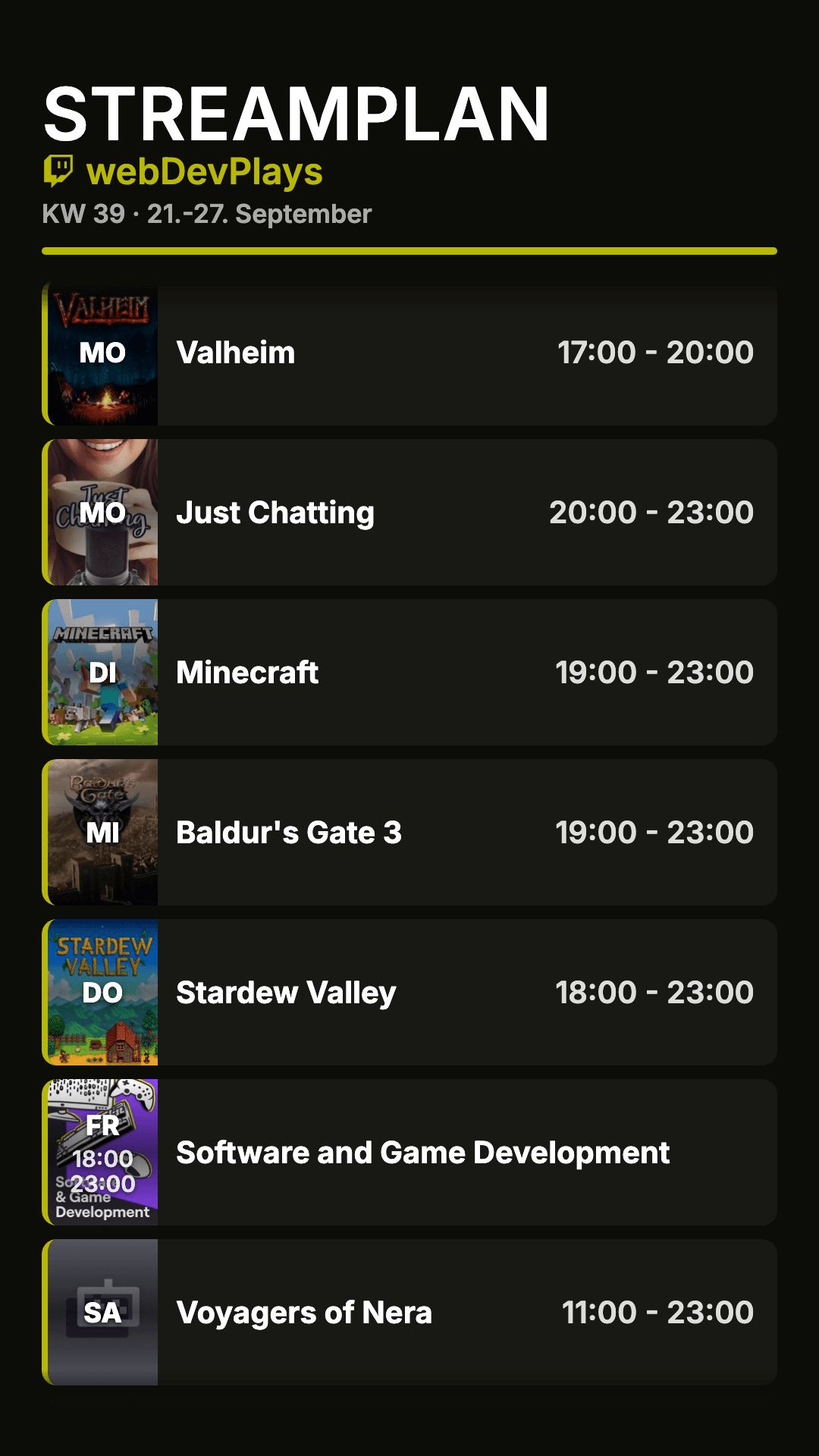
For Instagram or TikTok, the Streamplan-Manager turns your plan into an animated portrait video that you can then upload.
Free at the moment, within fair weekly limits. The manager only asks for more Twitch permissions when you switch on the feature that needs them.
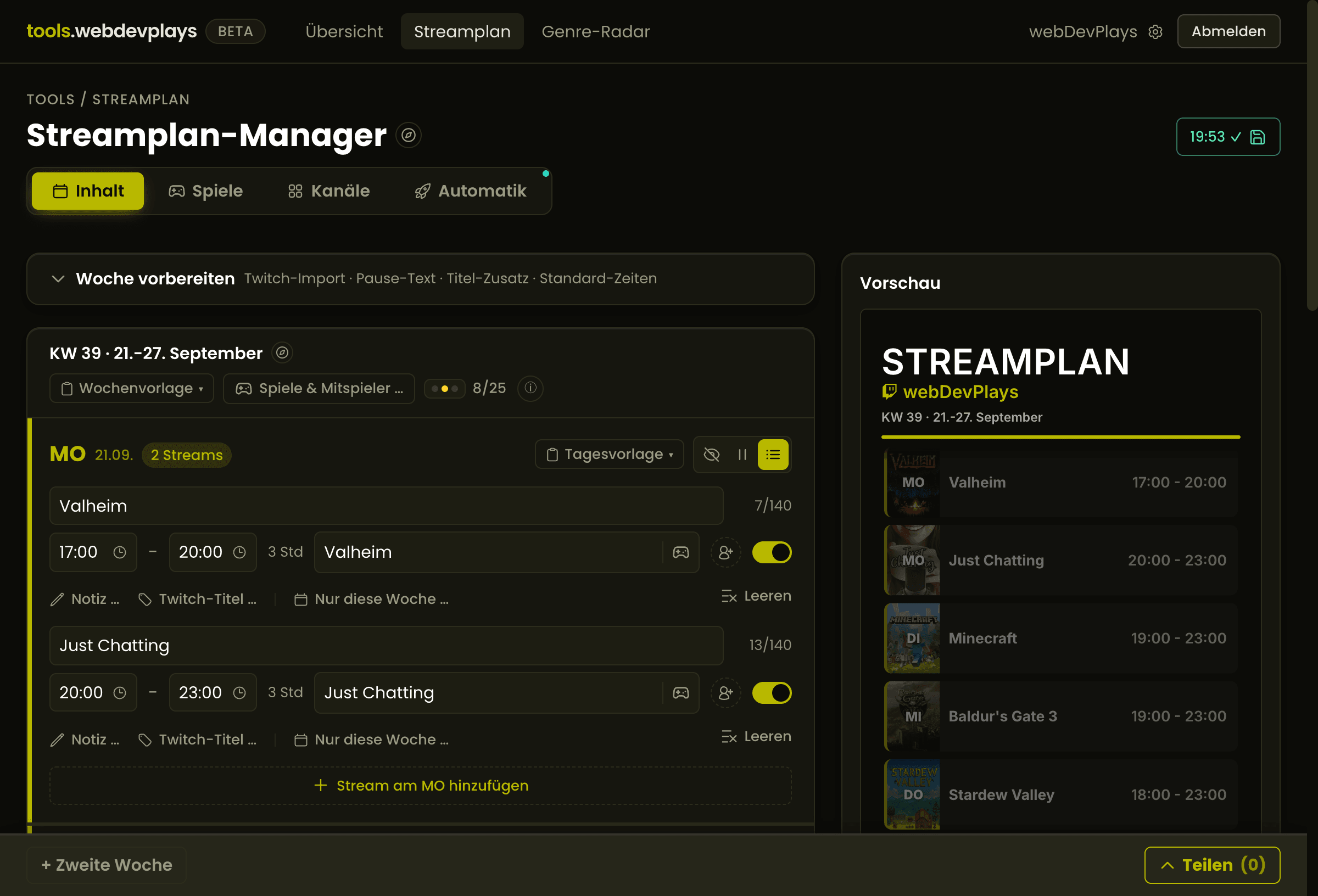
Sunday night, and the schedule has to go out in four places
The week is set. Now you type it into your Twitch Schedule, swap games and times in the graphic, take a screenshot for Discord and update the overlay in OBS. Next Sunday you do all of it again, even if hardly anything changed.
And if you move a stream on Tuesday, the round starts over. You fix the overlay and rewrite the title before you go live. Otherwise your community still sees the old date on stream.
That's exactly what cost me time every week as a streamer: keeping the schedule current and making it look good on social media and in Discord. I'm webby, and that's why I built the Streamplan-Manager for myself. Now you can use it too.
You enter your week once. Your Twitch Schedule, Discord and your overlay get it every week, and you get a portrait video on top. And the stream on Tuesday? You move it for this week only, and your fixed plan keeps running. The overlay and channel info show it right away.
One week in, four places out, from your Twitch Schedule to your overlay
Each place has its own time. Twitch gets the week on Monday at 6, Discord at your time and your overlay right away. The video comes along as soon as you upload it.
Twitch
Every Monday at 6 your week is in your Twitch Schedule
The manager enters your week automatically, even with your computer off. If you stream week A and week B in rotation, it works out which one is up, since Twitch itself has no such rotation. The time slot is fixed.
Stream Title, Category and Tags are set before you go live
The manager sets title, category and tags from your plan, between 5 minutes and 3 hours before the stream. You decide which of the three it may touch. If you stream with co-streamers, it adds their @ names to the title, within the 140 characters Twitch allows.
Your own title on Twitch stays put
If you type in a title yourself shortly before the stream, the manager leaves it alone. Afterwards it tells you which field it skipped and why. While you're live, it sets nothing.
You see ahead of time what goes out to Twitch
Before every run it says “sends week B (4 streams)” or “upcoming week is empty (break week?)”. If something's stuck, the reason sits next to the button that fixes it, and your plan stays as it is. If you want, you get a message on your phone when the transfer doesn't go through.
Social media
Your stream schedule as a video for Instagram and TikTok
The manager turns your week into an animated portrait video. Every app has its own margins, so you tick where you post, from Instagram Reels to Twitch Story. In the preview you see before uploading whether your Sunday disappears under a caption.
Your channel's colors, font and logo in the schedule
You pick colors and font to match your channel, with your logo on top. Your own background video can run behind the schedule if you like. Day and cover go left, right or alternating, in the video and the images alike.
Your stream schedule as an image and at Twitch panel width
Rather have an image? You pull the plan at full size or straight at panel width, no cropping needed. For a cancellation there's its own image with your text instead of CANCELED.
Discord
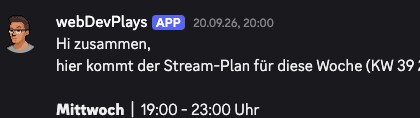
Every week in your Discord, as image and text
On Sunday or Monday at your time your plan goes to your Discord, or you send it with a button. If you already posted the week with the button, no second post goes out. The image grows with the week, so every stream fits on it with its co-streamers.
In your stream
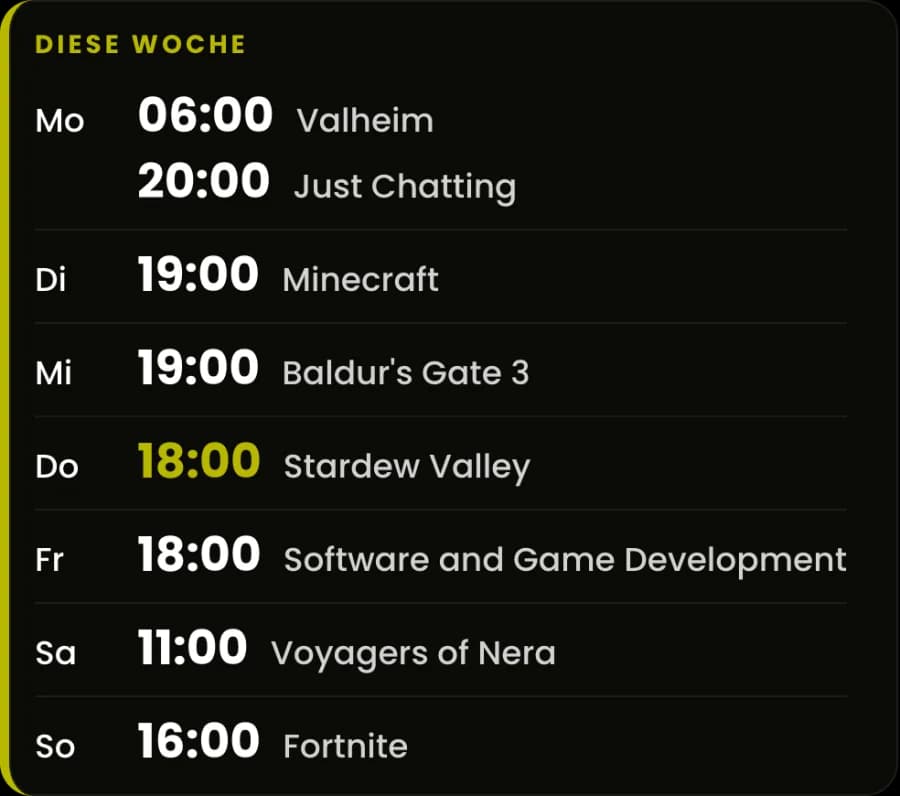
Stream schedule overlay in OBS with one browser source
You don't need a plugin. You drop the browser source into every scene, switch through your scenes in OBS once, and it recognizes the scene by itself. You decide which view it shows where, for example the next dates during a break and nothing during gameplay.
Not every week goes to plan
Exceptions last one week and your plan stays as it is
You can move a stream, swap it with another one, change its time and content, or cancel it. The overlay and channel info show it right away, your Twitch Schedule and Discord with the next send. You upload the video and image again afterwards. Next week your fixed plan is back.
Enter your time off, and Twitch goes into Vacation Mode
You just say from when to when you're away. The manager then switches on Twitch's own vacation mode and pauses sending to your Schedule and the channel info. In your overlay, the “Next stream” view switches to your vacation as soon as it is the next thing coming up.
61 weekly plan videos created so far · 5 tools ready
How do I create my stream schedule with the stream schedule generator?
- You sign in with your Twitch account. That's all you need to get started.
- You enter your week. If it's already on Twitch, you don't have to type it out: you pull it in from there and see beforehand what's new, what changes and what drops out. Twitch only hands over time, game and title, and you add the rest.
- After that you set how your plan looks and check it in the preview.
- Finally you switch on where the week should go: Twitch, Discord, your overlay. Only then does the manager ask for the Twitch permissions it needs. The video is the only thing you upload yourself.
Also included: genre radar
liveShow what you actually play
The radar draws your most-played genres from your Steam library, weighted by playtime or by number of games. You set the axes yourself. What comes out is a Twitch panel with a transparent background, so your viewers see what to expect from you. You connect Steam once, and your profile has to be public.
What other streamers say
„Sehr, sehr fein gemacht Webby! (:“
 selma_jiji
Transparency & FAQ
Around 95% of the code is AI-generated (“agentic engineering”). The idea, the direction, the product decisions and the final polish are mine - the AI writes, I steer and decide.
- 74
- sessions
- 32
- active days
- 4.6bn
- tokens processed
- 97.8 %
- from cache
As of July 20, 2026 · model: Claude Opus 4.8
What does all this cost?
Nothing at the moment. Within fair weekly limits you can use the tools for free. There are no ads and no sponsorships here.
Do I need Affiliate or Partner for the Twitch Schedule?
You don't need Affiliate or Partner for the Streamplan-Manager. It enters your week into your Twitch Schedule as weekly recurring segments, and Twitch doesn't ask for any status for those. Twitch only locks single dated segments for accounts without Affiliate or Partner.
Which permissions does the Twitch login need?
To sign in to the Streamplan-Manager, your Twitch account is enough; the manager only asks for more permissions when you switch on a feature. For the Twitch Schedule that's “Manage schedule”, for title and category it's “Edit channel info”.
Can I post my stream schedule to Discord automatically?
Yes, the Streamplan-Manager posts your stream schedule to your Discord as image and text, automatically once a week or with a button. For that you create a webhook in your Discord channel and add it in the manager.
Do I have to install any software or app?
No, the Streamplan-Manager runs in your browser, there's nothing to install. If you like, you add it to your home screen as an app. On iPhone and iPad you need that for messages on your phone.
Which formats can I export my stream schedule in?
The Streamplan-Manager gives you your stream schedule as an animated portrait video, as a full-size image and as an image at Twitch panel width. If the video gets too long for Twitch Stories, the manager warns you.
What layouts are there for the stream schedule?
The Streamplan-Manager fills in templates, it doesn't design anything: you set colors, font, background and the arrangement of the cards. If you design your plan from scratch every week, the manager probably isn't for you. If you have a fixed design of your own, you can still use it: you build the video into it, switch off the title area, move the plan and leave out the preview image.
Is the Streamplan-Manager available in English too?
Yes, the Streamplan-Manager and everything else here comes in German and English.
Why are renders limited?
Every image and video is rendered on our servers - that costs real processing time. So there is a fair weekly limit, currently 10 videos and 10 images per calendar week; the allowance resets every week.
So what do you do next Sunday?
Almost nothing, once your plan is set. Monday at 6 Twitch has the week, Discord gets it at your time and your overlay already shows it. You upload the video whenever it suits you. Try it with your next week.